Connect Zapier and ZenMaid
VibeAds connects to ZenMaid through Zapier. You sign in to VibeAds and to ZenMaid inside Zapier, then turn on two Zaps: one sends each new VibeAds lead to ZenMaid as a customer, the other sends ZenMaid's paid invoices back to VibeAds, so Google Ads counts the jobs your ads brought in as revenue.
How it works
VibeAds and ZenMaid never talk to each other directly. Zapier sits between them and runs two Zaps for you:
- New leads into ZenMaid. When a lead comes in from your VibeAds pages or a qualified phone call, Zapier creates the customer in ZenMaid.
- Paid jobs back to VibeAds. When an invoice is paid in ZenMaid, Zapier sends it to VibeAds. VibeAds finds the lead it came from and, if that lead came from a Google Ads click, sends the amount to Google Ads as revenue. Google Ads then learns which searches bring paying customers, not just form fills.
What you need
- VibeAds Pro. The free trial counts.
- A Zapier account. You can create one when you accept VibeAds' invite.
- ZenMaid on its Pro Max plan: ZenMaid offers its Zapier app only on that plan.
1. Connect VibeAds to Zapier
Connecting takes two parts: accept VibeAds' invite on Zapier, once, then sign in to VibeAds in your first Zap.
Accept the invite
- In VibeAds, open Settings, then Field service apps, and find the Zapier card. Click Connect with Zapier. The invite opens in a new tab.
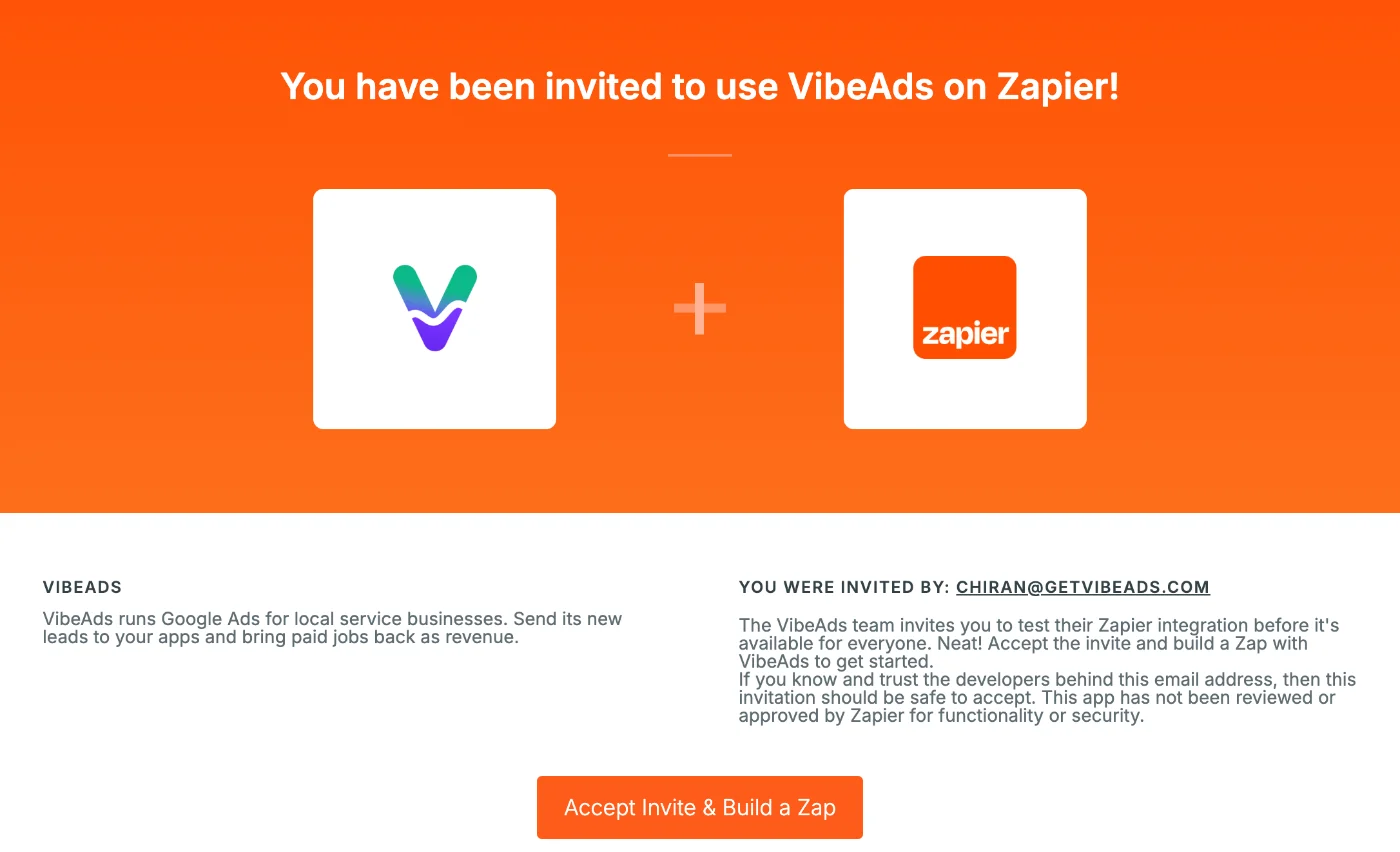
- Zapier shows You have been invited to use VibeAds on Zapier!, sent from a getvibeads.com address. Click Accept Invite & Build a Zap.
- Sign in to Zapier when it asks, or create a Zapier account. VibeAds is then added to your Zapier account, ready to use in a Zap.
Sign in to VibeAds in a Zap
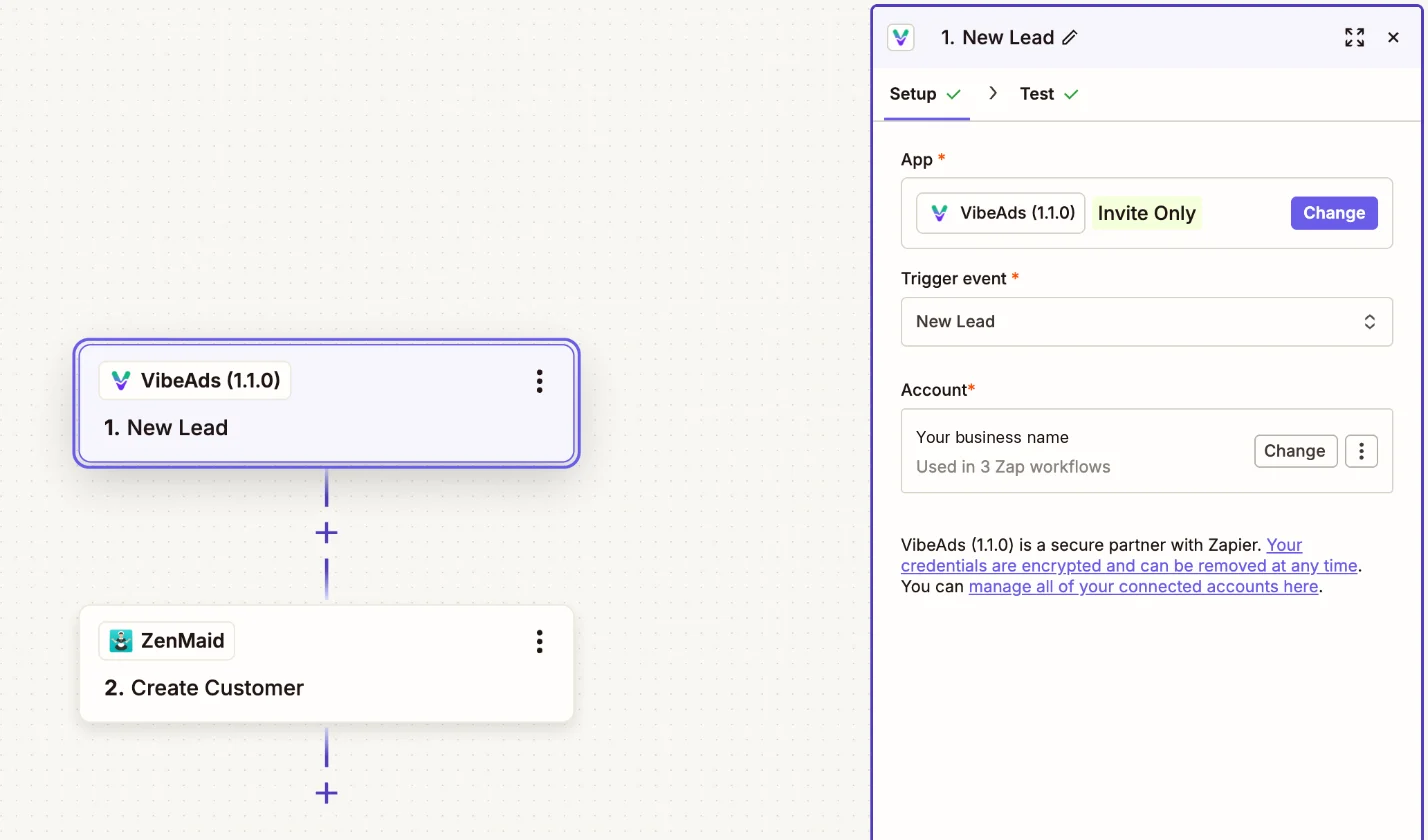
- Back on the Zapier card in VibeAds, click New leads into ZenMaid. Zapier opens a new Zap with both steps already chosen.
- On the VibeAds step, click Sign in. A window opens on VibeAds. Check that it shows the VibeAds account you use, then click Allow.
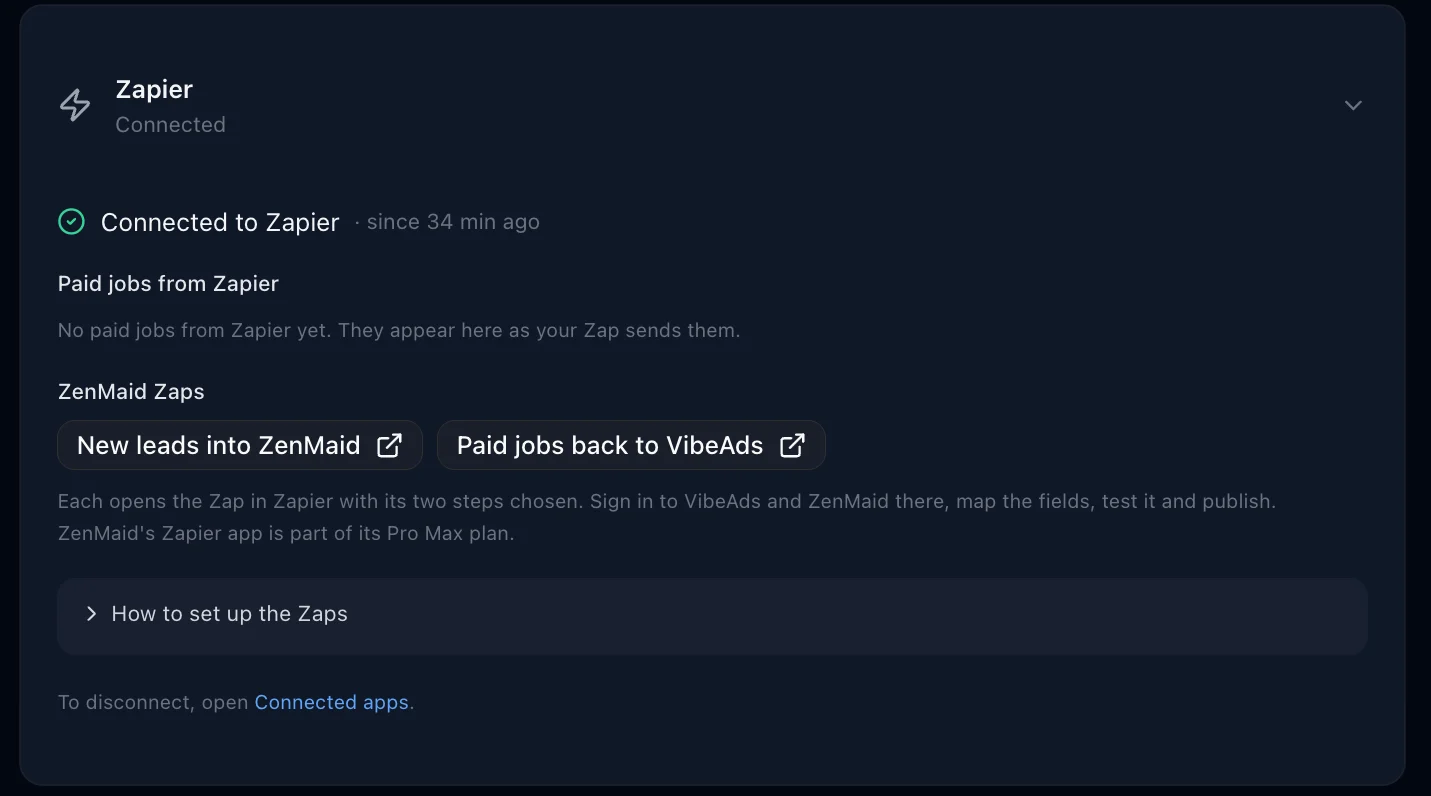
That's the whole connection. There's no password or API key to copy. The Zapier card in VibeAds then says Connected to Zapier:
With this connection Zapier can do two things: read your new leads and record paid jobs. It can't see or change your campaigns, your ads or your Google Ads account.
2. Send new leads to ZenMaid
- In the Zap you opened in step 1 (VibeAds New Lead, then ZenMaid Create Customer), click Continue on the VibeAds step, then Test trigger. Zapier shows your newest lead with every field VibeAds sends. If you have no leads yet, Zapier says No lead found; the Zap still works once a lead comes in.
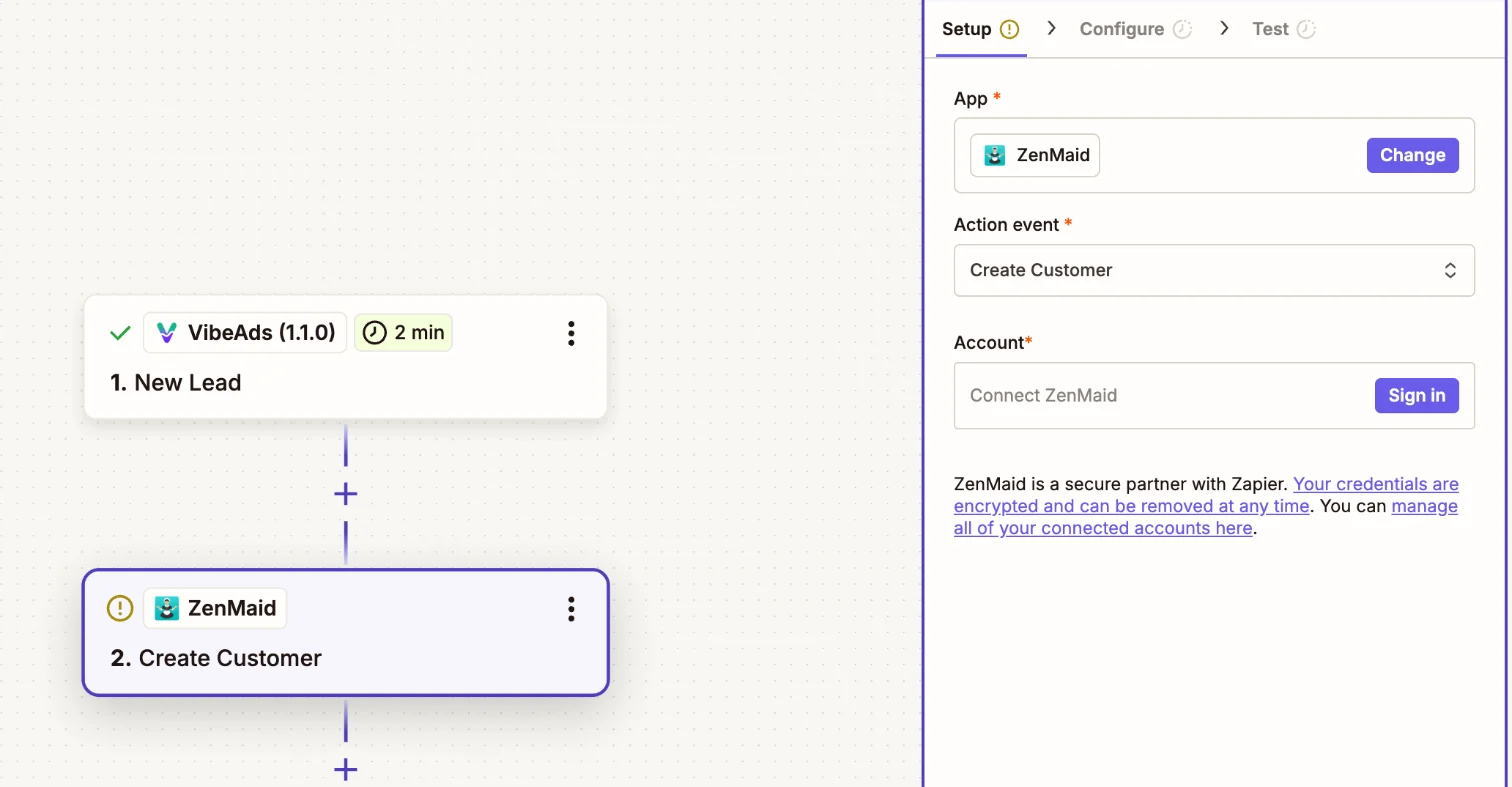
- On the ZenMaid step, click Sign in and sign in to ZenMaid.
- Fill in ZenMaid's fields from the lead: click into each field and pick the matching VibeAds field. First Name, Last Name, Email and Phone matter most, then Street Address, City, State and ZIP Code.
- Click Test step. Zapier creates that customer in ZenMaid, so you can check it there. Then click Publish.
These are the fields VibeAds sends for each lead:
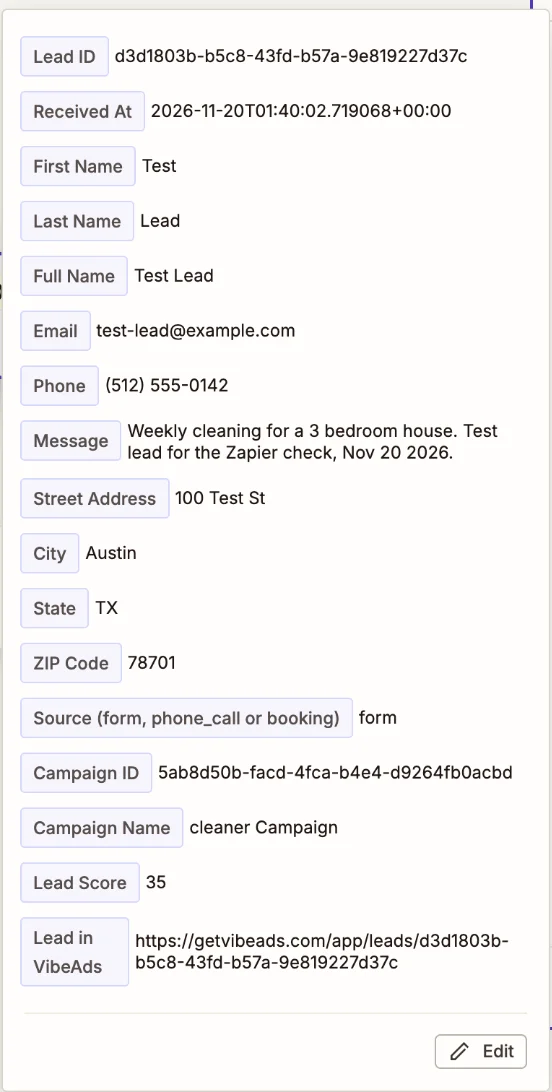
If ZenMaid's step has a notes field, Message (what the customer asked for) and Lead in VibeAds (a link to the lead) are useful there.
Zapier checks for new leads every 1 to 15 minutes, depending on your Zapier plan, and sends each lead once. Leads marked as spam aren't sent.
3. Send paid jobs back to VibeAds
- On the Zapier card in VibeAds, click Paid jobs back to VibeAds. Zapier opens a Zap with ZenMaid Invoice Paid, then VibeAds Record Paid Job. Your VibeAds and ZenMaid accounts are already connected, so Zapier picks them.
- On the ZenMaid step, click Test trigger to bring in a paid invoice.
- On the VibeAds step, fill in the fields from the invoice:
| VibeAds field | ZenMaid field | What to put in it |
|---|---|---|
| Job ID (required) | ID | The invoice's ID. VibeAds records each one once. |
| Amount (required) | Total Price | The amount paid, in dollars, such as 180.50. Not Total Due, which stays the same after the invoice is paid. |
| Customer Email | Customer Primary Email Address | The customer's email. VibeAds finds the lead by email or phone, so fill in at least one. |
| Customer Phone | Phone Number | The customer's phone number. |
| Customer Name | Bill To Name | Optional. |
| Customer ID | Customer ID | ZenMaid's ID for the customer, so repeat jobs from one customer are counted together. |
| Paid At | Payment Date | When the invoice was paid. Leave it empty to use the time the Zap runs. |
| Currency | Currency Code | Leave it empty to use your VibeAds account's currency. |
| App | Already says ZenMaid. Type it if it's empty. |
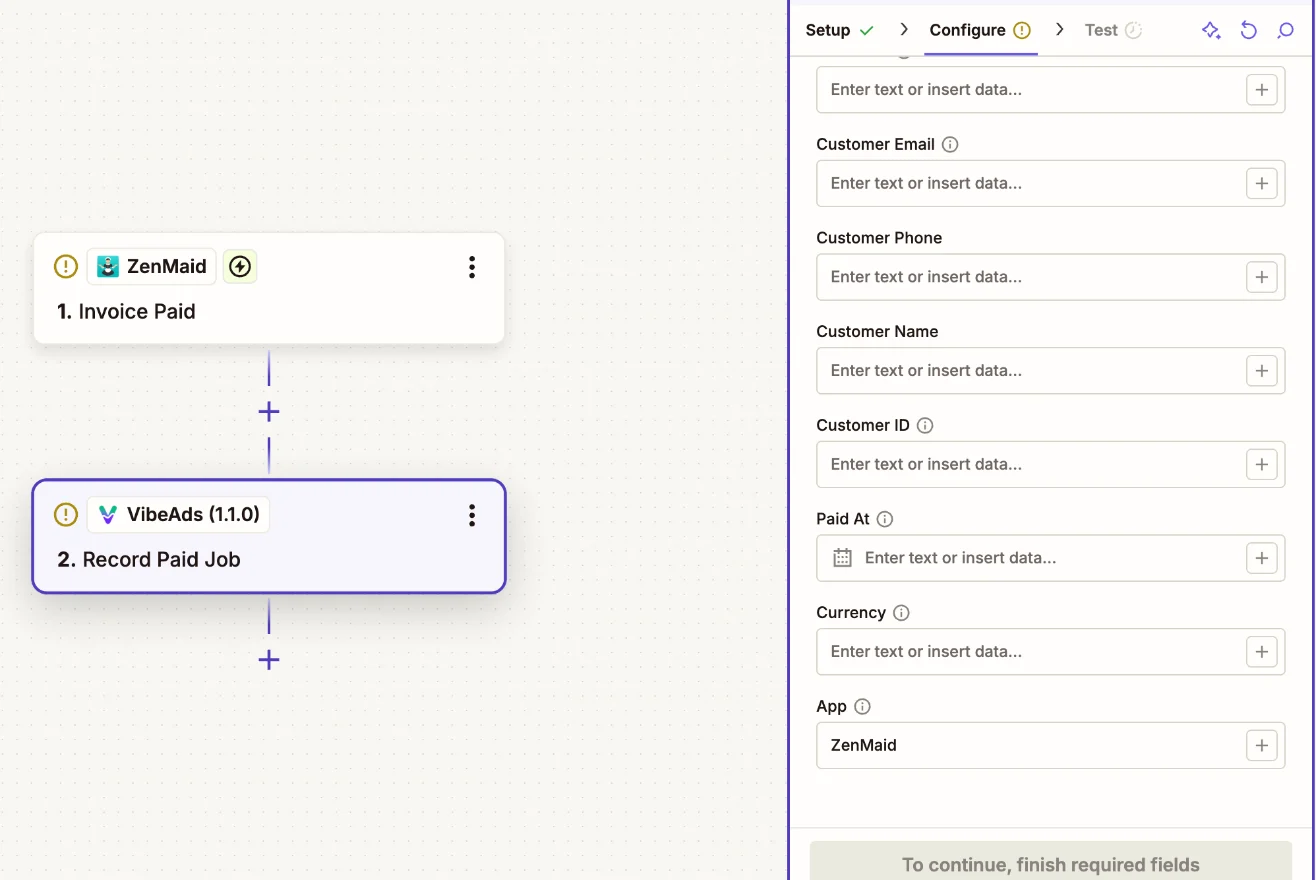
- Click Test step. This records that invoice in VibeAds, and the result says whether VibeAds found the lead and whether the lead came from a Google ad. Then click Publish.
How paid jobs are counted
- VibeAds matches a paid job to a lead by the customer's email (the same address) or phone (the same number). If a customer reached you more than once, it picks their newest lead from before the payment that came from an ad click, or else their newest lead from before the payment.
- A job whose lead came from a Google Ads click goes to Google Ads as revenue within 15 minutes. Google Ads accepts a conversion up to 90 days after the click; VibeAds stops at 85.
- A job with no matching lead, or whose lead didn't come from an ad click, is still recorded in VibeAds but isn't sent to Google Ads.
- For recurring services such as cleaning, the first paid job is sent with the customer's expected lifetime value, and later jobs for the same customer aren't sent again. See predictive lifetime value.
- The Zapier card in Settings lists the last paid jobs Zapier sent and what happened to each.
Other apps
The paid jobs Zap works with other apps whose Zapier app has a payment trigger. Create a Zap with your app's trigger, add VibeAds Record Paid Job as the action, fill in the fields as above, and type your app's name in App:
- Maidily: Paid Job
- BookingKoala: Booking Charged
- ServiceTitan: New Payment
- Thryv: New Payment
- DripJobs: New Payment Received
- QuickBooks Online: New Paid Invoice (a premium app on Zapier, so the Zap needs a paid Zapier plan)
VibeAds needs the customer's email or phone to find the lead. If your app's trigger doesn't include either, the job can't be matched.
Disconnecting
In VibeAds, open Settings, then Connected apps, and disconnect Zapier. Zapier can't read leads or record paid jobs after that, and your Zaps stop with a sign-in error. Turn them off or delete them in Zapier too.
Zapier and ZenMaid are trademarks of their owners. VibeAds connects to them through Zapier and is not affiliated with or endorsed by Zapier or ZenMaid.