Housecall Pro integration
Connecting Housecall Pro sends every new VibeAds lead into Housecall Pro, and brings paid jobs back. The revenue from jobs that started with a Google Ads click goes to Google Ads, so bidding learns which searches bring paying customers, not just form fills.
What it does
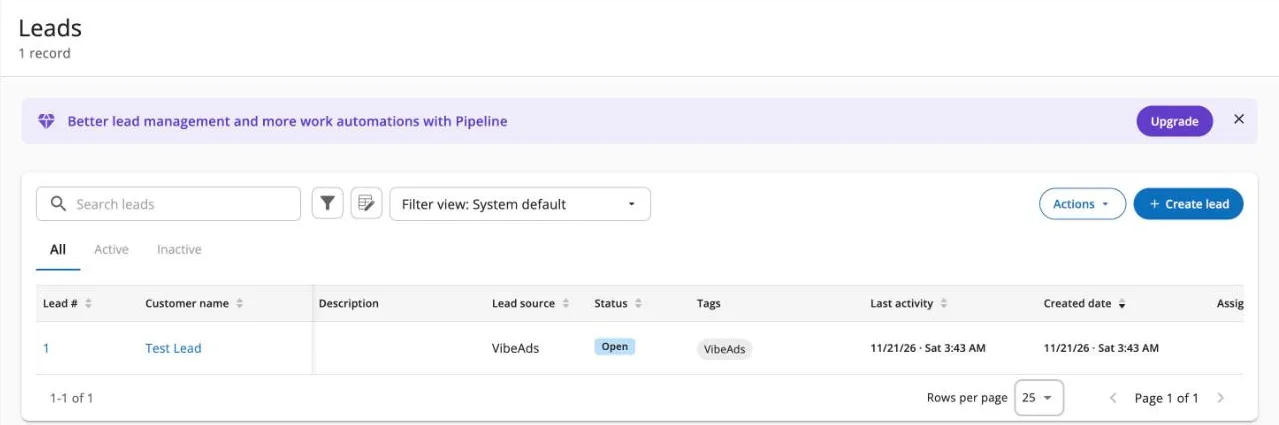
- Leads. Each lead from your VibeAds pages, and each qualified phone call, becomes a lead in Housecall Pro. It carries the customer's name, phone, email and address, a note with what they asked for and which campaign they came from, the lead source "VibeAds" and the tag "VibeAds". If Housecall Pro already has a customer with the same email or phone number, the lead goes to that customer instead of creating a second one.
- Job progress. When the job is scheduled, completed or paid in Housecall Pro, the lead in VibeAds shows it.
- Revenue. When the job is paid, VibeAds records it on the lead and sends it to Google Ads as a revenue conversion, if the lead came from a Google Ads click.
What you need
- VibeAds Pro. Sending revenue to Google Ads is part of it.
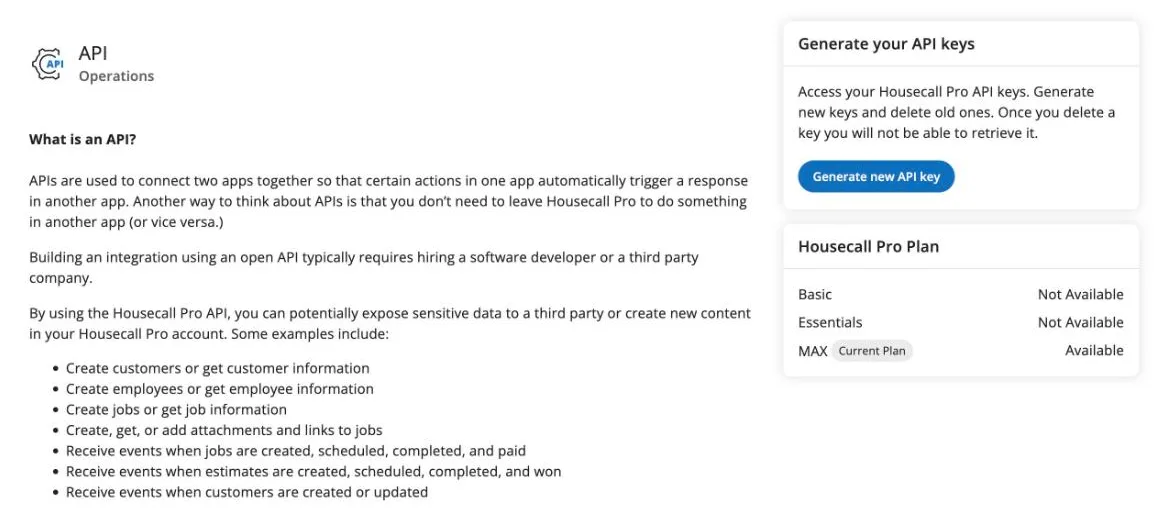
- A Housecall Pro account on a plan that includes API access. Housecall Pro offers it on its MAX plan.
- An admin login for Housecall Pro: only admins can create API keys.
Connect with an API key
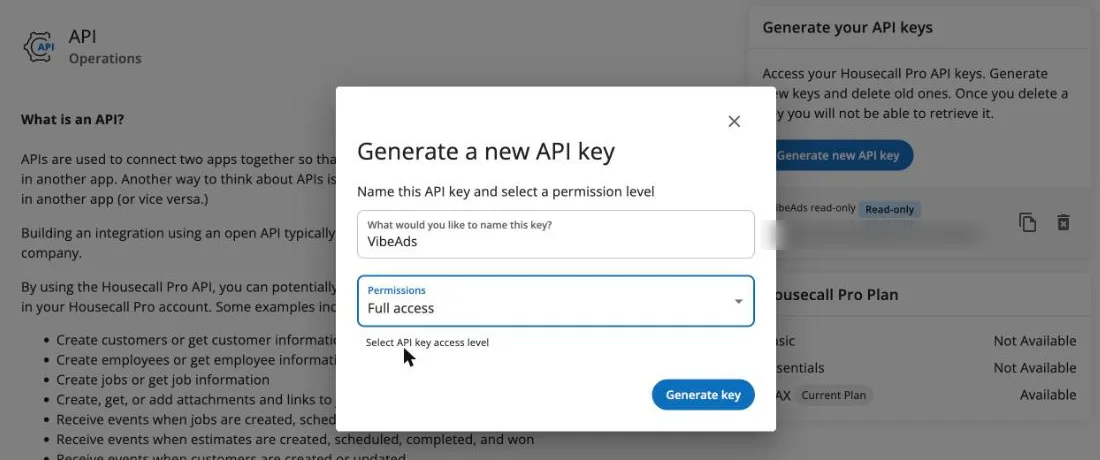
- In Housecall Pro, open My Apps, then All Apps, search for API, open API Key Management, and click Generate new API key.
- Name it VibeAds, choose Full access, click Generate key, and copy the key with the copy button next to it.
- In VibeAds, open Settings, then Field service apps. Under Housecall Pro, paste the key and click Connect.
- To see VibeAds leads in Housecall Pro's Job inbox, open the Job inbox app and turn on API Leads. Housecall Pro shows leads made through its API there only once that is on.
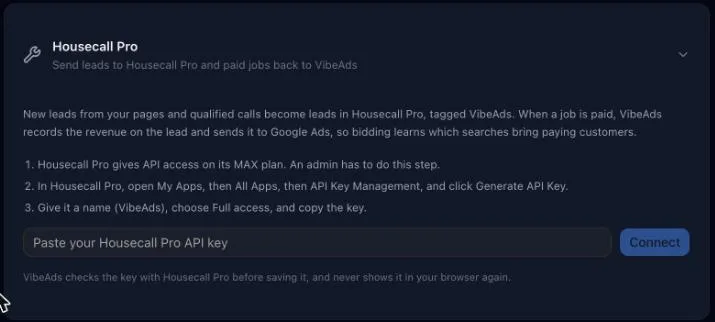
VibeAds checks the key with Housecall Pro before saving it. The key stays on VibeAds' servers and is never shown in your browser again. A key gives access to your whole Housecall Pro account, so only give it to tools you trust, and delete it in Housecall Pro if you stop using VibeAds.
Instant updates (webhooks)
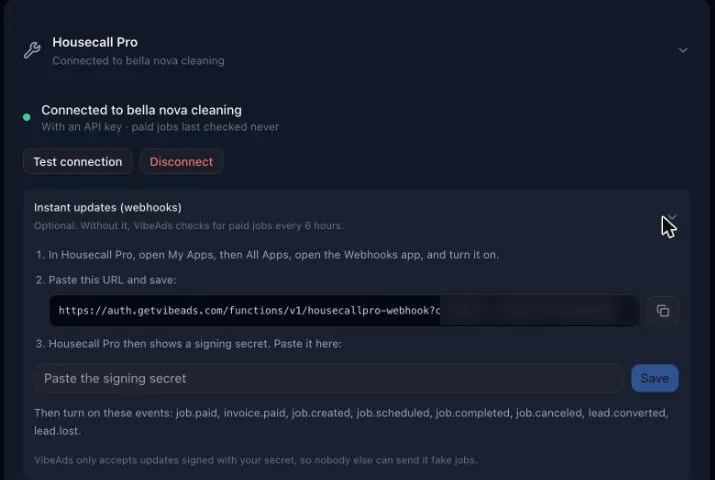
Webhooks are optional. Without them, VibeAds checks Housecall Pro for paid jobs every 6 hours. With them, paid jobs and job progress arrive within seconds.
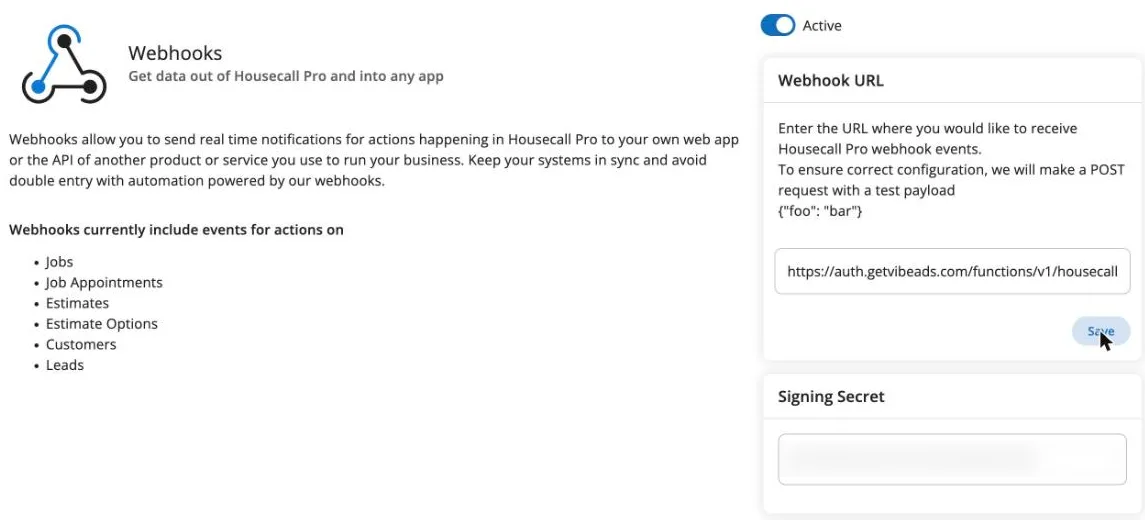
- In Housecall Pro, open My Apps, then All Apps, search for Webhooks, open the Webhooks app, and turn it on.
- In VibeAds, open Settings, then Field service apps. Under Housecall Pro, open Instant updates and copy the webhook URL. Paste it into Housecall Pro's Webhook URL and click Save.
- Housecall Pro then shows a signing secret under Signing Secret. Select it, copy it, paste it into VibeAds and click Save.
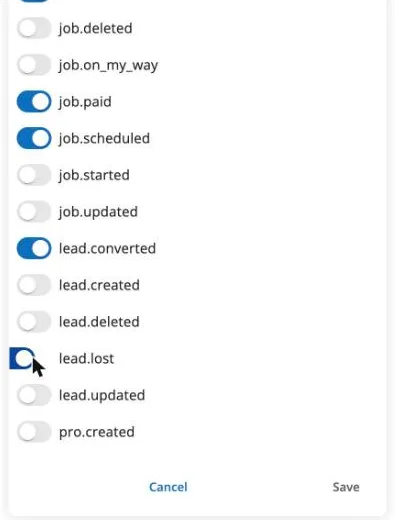
- In Housecall Pro, under Enable Webhook Events, turn on these events and press Save at the bottom of the list:
job.paid,invoice.paid,job.created,job.scheduled,job.completed,job.canceled,lead.converted,lead.lost.
How paid jobs are counted
- One conversion per paid job, for the job's total. A deposit does not count: Housecall Pro sends a "paid" update for it, and VibeAds waits until the job owes nothing, then records the whole total once.
- The job has to belong to a customer VibeAds sent to Housecall Pro. A walk-in customer you added yourself is not sent to Google Ads. When a customer reached you more than once, the job is matched to their newest contact that came from an ad click before the payment.
- Google Ads accepts a conversion up to 90 days after the click. VibeAds stops at 85.
- For recurring services (cleaning, pool, pest control, lawn care and similar), the first paid job is sent with the customer's expected lifetime value, and later jobs for the same customer are not sent again. See predictive lifetime value; the rules are the same as for Jobber.
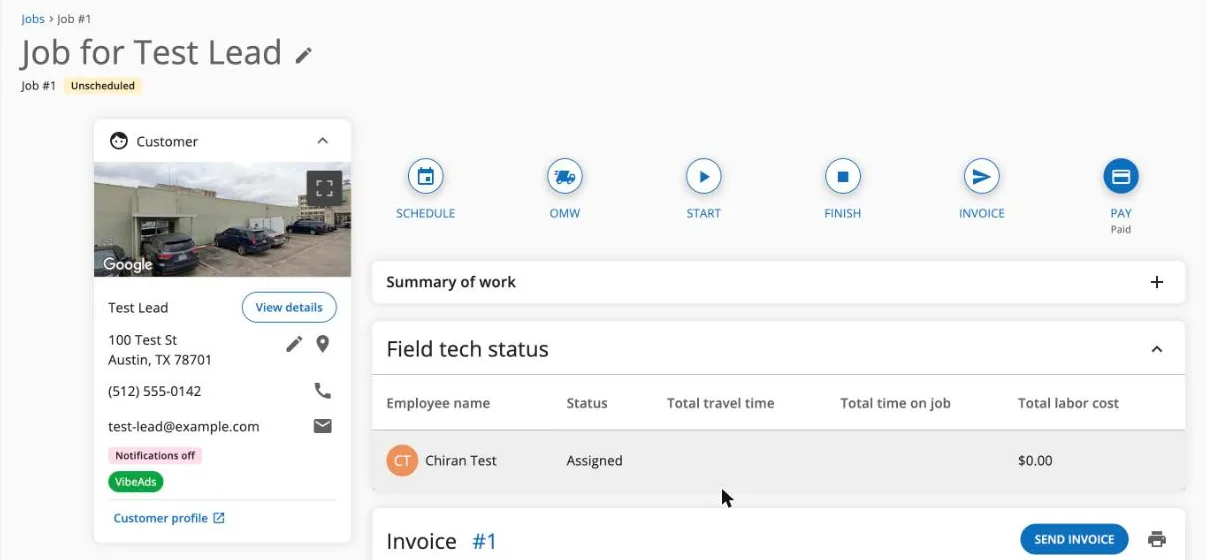
A paid job whose lead didn't come from a Google Ads click is recorded on the lead and stays out of Google Ads. The lead in VibeAds says so.
Phone calls
A call that VibeAds call tracking scores as a real lead becomes a Housecall Pro lead too. In Google Ads, a call asking for a quote is one conversion and the paid job is another, in its own conversion action. Once a campaign starts bidding on revenue, VibeAds makes paid jobs the only conversion Google bids on, so one customer is not counted twice.
Disconnecting
Disconnect in Settings, under Housecall Pro. VibeAds deletes the stored key and signing secret straight away. Leads already in Housecall Pro stay there. To be thorough, also delete the key under API Key Management and the webhook in Housecall Pro.
Housecall Pro is a trademark of its owner. VibeAds connects to it through Housecall Pro's public API and is not affiliated with or endorsed by Housecall Pro.