What does the VibeAds Jobber integration do?
The VibeAds Jobber integration connects your Jobber account to your Google Ads campaigns in both directions. New leads from your ads are created in Jobber as a client and a request, so nobody types them in twice. On the Max plan, when the job's invoice is marked paid in Jobber, we send that revenue back to Google Ads, tied to the original ad click, so Google can learn which searches bring paying jobs and not just phone calls.
It works with the leads VibeAds captures: form fills on VibeAds landing pages and calls to a VibeAds tracking number that our AI scores as qualified. You keep running the business in Jobber the way you do now. The integration takes care of the retyping and the reporting.
Why does Google need to know who paid, not just who called?
Google Ads can only optimize toward what you report as a conversion, and in most home-service accounts that is a lead: a form fill, a call, a tap on the phone number. A lead is not a paying job. Google counts a caller who books a full replacement and a caller who wanted a price and vanished as the same result, unless something tells it what happened next.
The keyword that brings the most leads is not always the one that brings the most paid work. Price shoppers, "how much does it cost" research and people just outside your service area can fill a lead report while the calendar stays thin, and bidding that learns from leads keeps buying more of them.
The loop rarely gets closed because the money shows up later, in another system, days or weeks after the click. That is also why value-based bidding is usually out of reach for local businesses, as our guide to bidding strategies explains: there is no revenue data to feed it.
| What Google is told | What Google learns | What it still can't see |
|---|---|---|
| A form fill or a tap on your number | Someone raised a hand | Whether they booked, and for how much |
| A qualified call | A real conversation happened | Whether a job followed |
| A paid invoice from Jobber (Max) | A job was done and paid, and what it was worth | Jobs paid more than 85 days after the lead |
How does the loop work, step by step?
The loop runs from the ad click to a paid invoice reported back to Google Ads. VibeAds keeps the click, turns the inquiry into a lead, creates it in Jobber, follows the job while you work it and, on Max, sends the paid amount to Google against that first click.
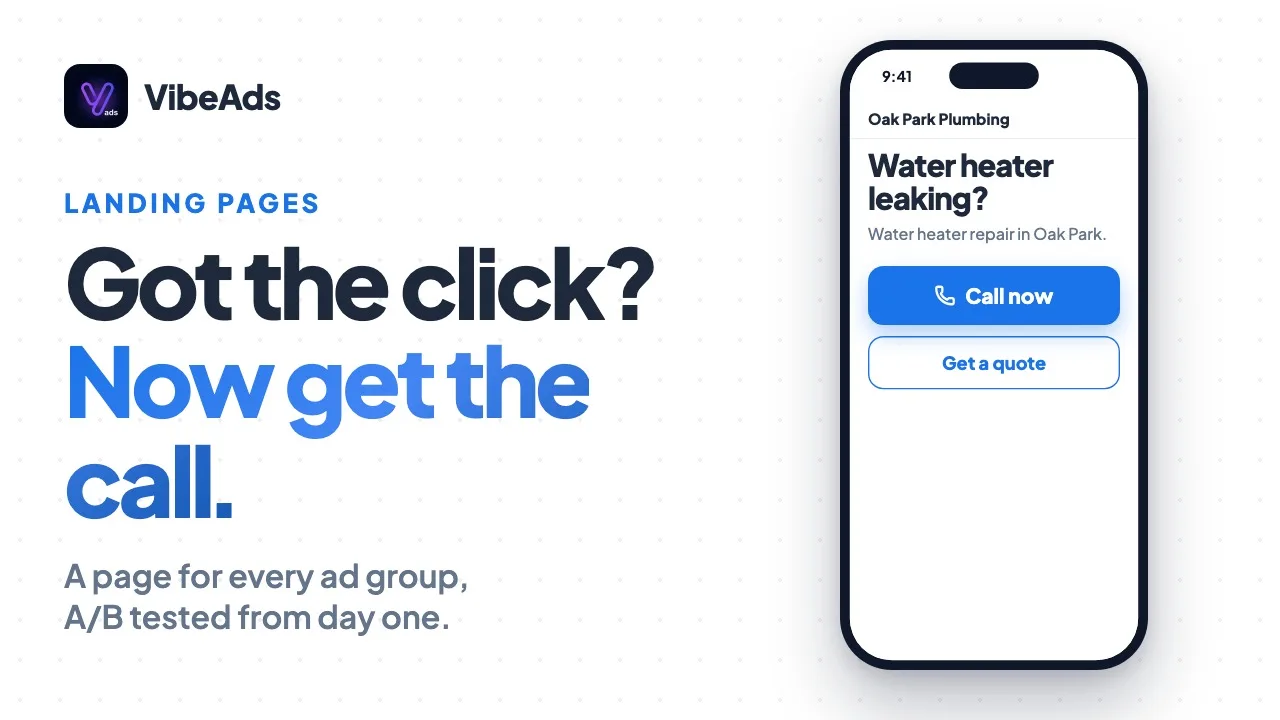
- Someone clicks your ad and lands on your VibeAds page. The page keeps Google's click ID, which lets a later sale be tied back to that exact click. (See landing pages.)
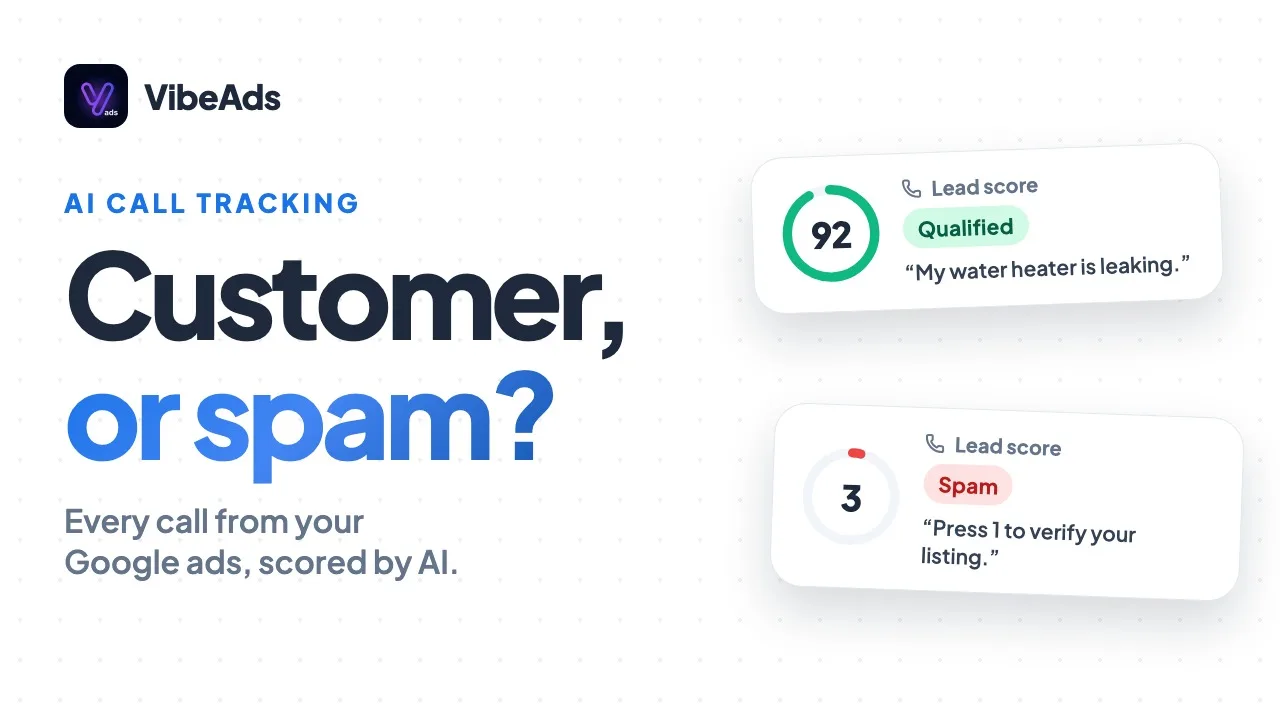
- They fill in the form or call. A form fill becomes a lead straight away. A call to your VibeAds tracking number becomes one once our AI scores it as qualified: 30 or more out of 100, and not spam (see call tracking). If the caller found your number on a page they reached from an ad and calls within 30 minutes, the call carries the same click ID.
- The lead appears in Jobber. We reuse an existing Jobber client when the email matches (or the phone, for phone-only form fills), otherwise create one, then add a request. Form requests carry the ad group, campaign, customer's message, service address and lead score. Call requests carry the service and urgency our AI picked out of the call, with a short summary.
- You work the job in Jobber. As it moves, its status shows on the lead in VibeAds: scheduled, in progress, completed, invoiced, paid.
- The invoice is paid. Jobber lets VibeAds know and we record the invoice total on the lead, matching it through the Jobber client linked to that lead. A lead that was never linked is matched by email instead.
- On Max, the revenue goes to Google Ads as soon as Jobber reports the payment, with the payment date as the conversion time and the original click ID attached. A background run every 15 minutes picks up anything still waiting.
- Google files it under VibeAds Revenue, the Purchase conversion action VibeAds creates for each campaign it publishes.
Only leads that started with a Google Ads click can be credited. Someone who typed in your web address still lands in Jobber, but there is no click to send revenue against.
What value does Google receive for each paid invoice?
Google receives the Jobber invoice total multiplied by a fixed factor for your campaign's service category, for invoices paid within 85 days of the lead coming in. For recurring services, only the customer's first paid invoice is sent, with a larger factor, so Google gets an estimate of that customer's repeat value up front.
The reason is timing. Google accepts uploaded conversions for up to 90 days after the click, and the revenue conversion VibeAds creates uses that full window. A recurring customer's value builds over months or years, well past that window, so the first paid invoice carries an estimate of it. Later invoices stay on the lead in VibeAds without being sent, since sending them too would count the same customer twice.
| Service category | Sent on the first paid invoice |
|---|---|
| Pool Services | Invoice total x 12 |
| Cleaner | Invoice total x 10 |
| Pest Control | Invoice total x 8 |
| Landscaper | Invoice total x 6 |
| Pressure Washing, Christmas Lighting, Dentist | Invoice total x 3 |
Every other category sends each paid invoice with a factor between 1 and 2: for example 1.2 for plumbers and electricians, 1.3 for HVAC, 2 for handyman work, and 1 for roofers and locksmiths. A custom category we don't have a profile for sends the invoice total as it is.
Invoices paid more than 85 days after the lead came in are recorded in VibeAds but not sent. The five days short of 90 are a buffer, so a slow payment record doesn't miss Google's cutoff. The factors are our estimates, the same for every account in a category, so treat the revenue in Google Ads as a bidding signal, not your books.
What does Google do with the revenue?
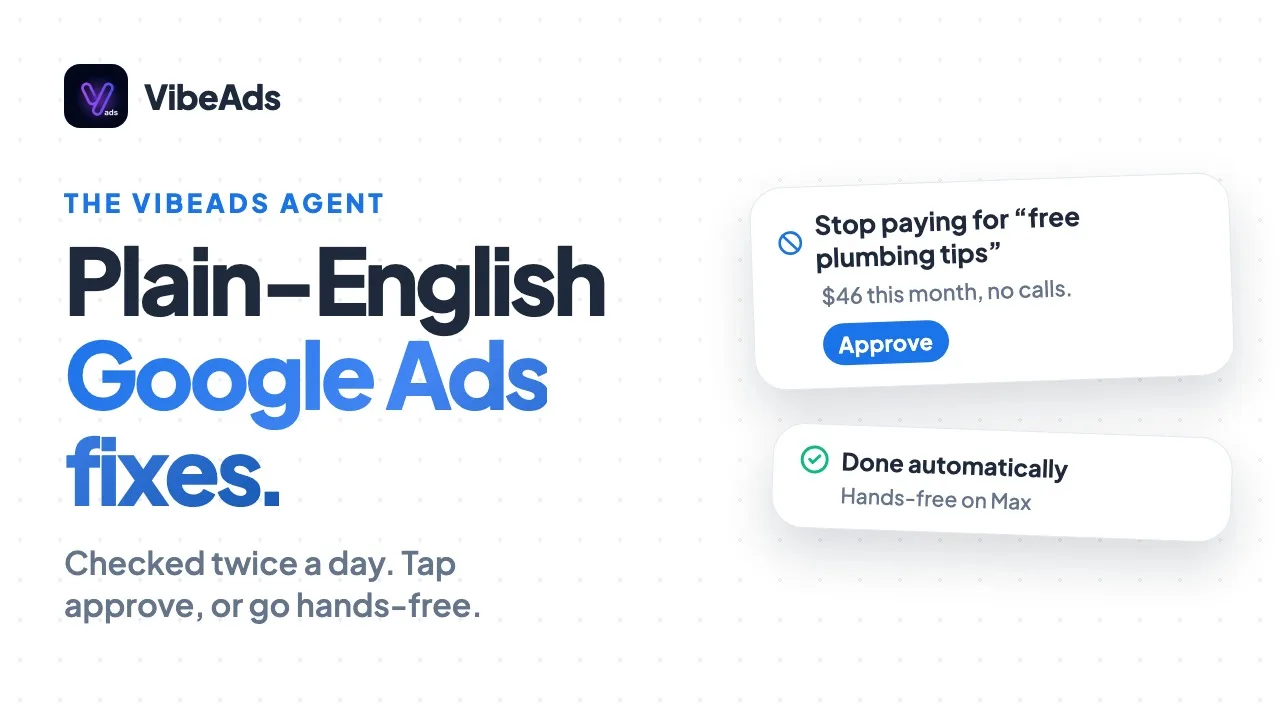
At first, Google only records it. The VibeAds Revenue conversion starts as a secondary action: revenue shows in Google Ads under All conversions, but bidding keeps working from your lead conversions. Once a campaign has enough paid-invoice volume, our optimization agent recommends making revenue the goal, and you approve the switch.
Value bidding needs steady volume, so the agent waits for three things: at least 30 paid invoices sent to Google in the last 30 days, at least 50 total conversions in the same period, and the campaign already running Maximize Conversions. Approving makes VibeAds Revenue the primary conversion, moves your lead, website and call conversions to secondary, and switches bidding to Maximize Conversion Value, where Google aims for the most paid-job value it can get for your budget.
The next step is Target ROAS, where Google aims for a set return: revenue divided by ad spend. The agent suggests it after at least two weeks on Maximize Conversion Value, with 50 or more paid invoices in the last 30 days and a weekly return that has held steady (a spread of no more than 20 percent). The target is 90 percent of what the campaign has actually returned. Say the last few weeks brought $4 of revenue in Google Ads for every $1 of spend: the suggestion would be 3.6 to 1, which leaves room to grow.
If revenue is already the goal and paid invoices fall below 20 in 30 days, the agent flags it and suggests going back to lead-based bidding if volume doesn't recover. If you change bidding yourself in Google Ads, it holds off for 7 days so it isn't fighting you. None of these steps runs on its own, even on Max with hands-free on: each one waits for your approval. More on how the optimization agent works.
Paid invoices also count in our automatic landing page tests, where they weigh more than form fills when a winner is picked.
Which plans include the Jobber integration?
Lead sync is included in Pro at $20 a month and Max at $149 a month. Sending paid-invoice revenue to Google Ads, and the bidding recommendations that depend on it, are Max only. There is no extra charge on either plan, but you need your own Jobber account.
| Free | Pro ($20/month) | Max ($149/month) | |
|---|---|---|---|
| New leads and qualified calls created in Jobber | No | Yes | Yes |
| Jobber status shown on each lead | No | Yes | Yes |
| Paid invoices sent to Google Ads as revenue | No | No | Yes |
| Revenue-based bidding recommendations | No | No | Yes, you approve each one |
Two things to know. Invoices paid while you're on Pro are never sent to Google, and upgrading later doesn't send them after the fact. And on Max, once Jobber is connected, qualified calls from call tracking stop being uploaded as conversions, because the paid invoice replaces them and one customer shouldn't count twice. On Pro, which doesn't send invoices, qualified calls keep going to Google Ads as before. Full plan details are on the pricing page.
How do you set up the Jobber integration?
Setting up the Jobber integration means connecting Jobber from VibeAds Settings, approving access in Jobber, and making sure your leads come through VibeAds pages or tracking numbers. On Max, you also check that each campaign has the VibeAds Revenue conversion and that your Google Ads account has accepted Google's Customer Data Terms.
- Be on Pro or Max. On Free, the Jobber section in Settings asks you to upgrade.
- Connect. Open Settings in VibeAds, expand Jobber, click Connect Jobber, then sign in to Jobber and approve. There is nothing to configure inside Jobber.
- Route leads through VibeAds. Point your ads at VibeAds landing pages, and use a VibeAds tracking number if calls matter to you.
- Check the first lead. Its Jobber & Conversions card shows "Synced to Jobber", the request status and an Open in Jobber link, or the error and a Retry sync to Jobber button if something failed.
- Work jobs as usual, and keep each invoice on the client VibeAds created.
- On Max, check each campaign's Tracking tab. Campaigns without the revenue conversion, such as older or imported ones, show an Upgrade conversion tracking card that adds it.
- On Max, run the Account Readiness Check in Settings to see whether Google's Customer Data Terms are accepted. If they are, uploads also include hashed (one-way scrambled) email, phone and name, which gives Google more to match on. If not, we send the conversion without them.
- Look for the upload. After a paid invoice, the lead card shows "Revenue uploaded to Google Ads" and the amount sent.
What mistakes should you avoid?
The costly mistakes break the link between a lead and its invoice, push payment past the 85-day window, or judge revenue before it has arrived.
- A second client for the same customer. If you add a synced customer to Jobber again and invoice the new client, the payment can't be matched to the lead, even with the same email.
- Paid work drifting past 85 days. Big jobs with long approvals, like insurance roofing or a remodel, can be paid after the window. They still show in VibeAds but won't reach Google.
- Reading last week's revenue too early. Google Ads reports conversions against the date of the ad click by default, not the payment date, so recent days fill in as invoices get paid.
- Switching to value bidding by hand too soon. A handful of paid jobs a month gives Google too little to learn from, which is why our recommendation waits for 30 paid invoices and 50 total conversions in 30 days.
- Sending ads to a form VibeAds doesn't handle. If your ads point at your own website form, those leads never reach VibeAds, Jobber or Google through this integration.
When is the Jobber integration not the right fit?
The Jobber integration isn't the right fit if you don't run your business in Jobber, if most of your jobs are paid more than 85 days after the first inquiry, or if your ads send people to a website form VibeAds doesn't handle. Low volume isn't a reason to skip it, but it changes what you get.
Jobber is the field service tool VibeAds connects to today; others are listed as coming soon. If a campaign's ads bring fewer than 30 paid invoices a month, revenue will stay a reporting signal in Google Ads rather than the bidding goal, and lead sync on Pro may be all you need for now.
FAQ: Jobber and Google Ads
Does the Jobber integration work on the Pro plan?
Yes, for lead sync: new leads and qualified calls are created in Jobber, and their Jobber status shows in VibeAds. Sending paid-invoice revenue to Google Ads needs Max.
Do you have to change how you use Jobber?
No. Quote, schedule, invoice and take payment the way you do now. The one habit that matters is keeping each invoice on the client VibeAds created.
Does connecting Jobber change your bidding automatically?
No. Revenue starts as a secondary conversion that Google records but doesn't bid on. Moving a campaign to revenue-based bidding is a recommendation you approve, even on Max with hands-free on.
How soon does Google see a paid invoice?
We send it as soon as Jobber reports the payment, with a background run every 15 minutes as a backup. Google credits it to the date of the original click.
What happens with repeat customers?
For recurring categories, the first paid invoice goes to Google with the category factor and later ones stay in VibeAds. For other trades, the revenue conversion counts one conversion per ad click, so a repeat job from the same click doesn't add a second conversion in Google Ads. Every paid invoice is still recorded on the lead.
Are older invoices sent if you upgrade from Pro to Max?
No. Invoices paid while you were on Pro are not sent later. Revenue reporting starts with invoices paid after you upgrade.
Bottom line
Google Ads finds more of whatever you tell it counts, and in most home-service accounts that is a lead, which is only a guess at revenue. Connecting Jobber ends the double entry on Pro, and on Max it gives Google the part it never had: which clicks turned into paid work, and what that work was worth. Keep your Jobber records clean, let the revenue signal build, and make revenue the bidding goal when the numbers support it. The Jobber docs cover the technical detail.